

How to Test RAM for Gaming on Your PC
How to Test RAM for Gaming on Your PC
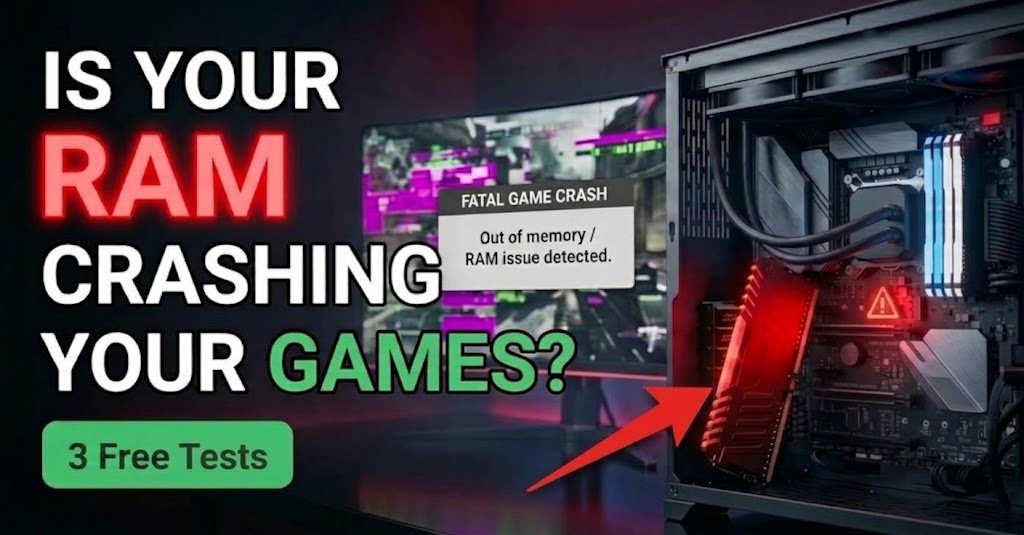
We've all been there. You're mid-match the screen freezes and your PC restarts out of nowhere. Before you blame the graphics card look at your memory. Bad RAM causes more gaming headaches than most people realize. Here's how to test RAM for gaming without paying for anything. You'll only need Windows and a spare USB drive.
Why Learning How to Test RAM for Gaming Matters
Think of RAM as your desk space. The bigger and tidier it is the faster you can work. Games dump textures maps and character data onto that desk all at once. If the desk is cramped or broken things slow down fast. You get stutter lag or a full crash. A quick gaming PC memory test after any new build saves a lot of frustration.
How Much RAM Is Needed for Gaming
For most people 16 GB is the sweet spot right now. You can still get by with 8 GB on older games but newer ones choke on it. Stream while you play or keep a dozen browser tabs open? Then 32 GB starts to make sense. Check what you already have before you spend a cent on upgrades.
DDR4 vs DDR5 Gaming Performance
DDR5 is the newer faster standard. Still DDR4 holds up well in most games and the real-world gap is small. DDR5 pulls ahead in CPU-heavy games and on newer boards. One catch: the two types don't fit the same slots. So look at your motherboard's manual first. That's also the easiest way to check RAM compatibility.
Signs of Faulty RAM in Gaming
Bad RAM rarely dies with a bang. It usually starts small and plenty of gamers blame the GPU instead. Before you swap parts watch for patterns. If odd problems follow you from game to game memory is a prime suspect. Here are the usual red flags worth knowing about so keep an eye out.
- Random game crashes or freezes
- Blue screens with memory error codes
- Sudden PC restarts during play
- Glitchy textures or corrupted files
- No boot or beeps at startup
How to Check if RAM Is Causing Game Crashes
Crashes aren't always RAM's fault. Old drivers heat and weak power supplies cause them too. Rule those out first by updating your GPU driver and checking temperatures. Then open Event Viewer and hunt for memory errors. Still crashing? Run the tests below. If they find errors you've got your answer. It's that simple.
How to Test RAM for Gaming on Windows 11
Let's begin with the quick stuff. Open Settings click System then About. Your installed RAM shows up right there. That's the fastest way to check installed RAM in Windows 11. It won't tell you speed or type though. For that you need one more tool. Luckily how to test RAM for gaming gets easier from here.
How to Check RAM Speed and Capacity
Press Ctrl + Shift + Esc to open Task Manager. Head to Performance then Memory. You'll see your speed slots in use and form factor. Want more detail? Download CPU-Z and check its Memory and SPD tabs. They show your RAM type timings and manufacturer. Use them to confirm your kit runs at the speed you paid for.
How to Test RAM for Gaming: Finding Errors
Now for the part that really matters. Running an error test is the most reliable way to check RAM health. Two free tools do the job nicely. One lives inside Windows. The other runs from a USB stick. I'd use both if you suspect a problem. Save your work first because your PC will restart.
Windows Memory Diagnostic Tool
This one needs no download at all. Press Windows + R type mdsched.exe and hit Enter. Pick Restart now and check for problems. Your PC reboots and scans the memory. Tap F1 during the scan if you want Extended mode which digs deeper. Windows shows the results once it loads. Can't see them? Look in Event Viewer under Windows Logs.
MemTest86 RAM Test
Want a tougher check? Try the MemTest86 RAM test. It runs outside Windows so nothing gets in its way. Download it from the official site build a bootable USB drive and boot from that. Let it finish at least four passes. A single error is a red flag. Plenty of experts call it the best RAM testing software around.
How to Know if Your RAM Is Working Properly
Healthy RAM passes every test with zero errors. Your games stay stable and Windows stays quiet about memory problems. Got errors? Test one stick at a time in the same slot. Then move each stick to a different slot. This swap tells you whether the stick or the slot is the problem.
RAM Stress Test for Gaming
A stress test pushes your memory harder than any game will. That matters because some faults only show up under heavy load. TestMem5 OCCT and HCI MemTest are popular picks. Some are free some aren't. Run a RAM stress test for gaming for at least 30 minutes. If your system stays stable the whole time your memory is probably in good shape.
How to Test RAM Stability After Overclocking
Overclocking or even turning on XMP can create hidden instability. A game might run fine for an hour and then crash. So retest after every BIOS change and run the stress test for an hour or more. Seeing errors? Lower the speed or loosen the timings. A small voltage bump can help but stay inside the maker's safe range. When in doubt go back to defaults.
How to Check RAM Usage While Playing Games
Your RAM usage while gaming tells you whether you need more memory. Open Task Manager and watch the Memory graph as you play. If it sits above 85 to 90 percent your PC is running short. MSI Afterburner can show a live overlay if you'd rather not alt-tab. To test RAM performance run AIDA64's memory benchmark and compare your scores with similar kits.
How to Fix RAM Errors in Games
Found errors? Don't panic yet. Start with the easy fixes. Shut down the PC unplug it and press each RAM stick firmly back into its slot. Wipe the gold contacts gently with a dry cloth. Next reset your BIOS to defaults. Many game errors disappear after this. If a stick still fails replace it and check the warranty first.
How to Improve RAM Performance for Gaming
Once your memory checks out you can squeeze out extra speed. Turn on XMP or EXPO in your BIOS. Use two matching sticks so you get dual-channel mode and more bandwidth. Close background apps and keep Windows updated. Still short on memory? Upgrade to 16 or 32 GB. These small tweaks improve RAM performance for gaming without costing much.
Related Keywords & Topics
People look for this topic in all sorts of ways. Some type how to check RAM for gaming. Others ask how to test RAM performance or want the best RAM testing software. Plenty just want a simple way to test RAM stability. The goal never changes: a fast stable PC. A gaming PC memory test a RAM stress test and a speed check work best as a team.
Not sure what's inside your machine yet? Start with our guide on how to check PC specs then come back. Planning to play a new release? Read how to check if your PC can run a game first. And before you buy new sticks check your motherboard's supported memory list. Match the DDR type speed and capacity limits.
FAQs
How to test RAM for gaming on Windows 11?
Press Windows + R type mdsched.exe and restart to run the Windows Memory Diagnostic tool. Then boot MemTest86 from a USB drive for a deeper scan. Finish with a 30-minute stress test in OCCT. If all three show zero errors your RAM is ready for gaming. The whole process takes about an hour.
How do I check if RAM is causing game crashes?
Look for patterns first. Random crashes across many games blue screens and memory errors in Event Viewer all point to RAM. Rule out drivers and heat then run MemTest86. One error confirms the problem. To find the bad stick test each one alone. If it fails again replace it. Don't keep a failing stick in your PC.
What is the best RAM stress test for gaming PCs?
MemTest86 is the gold standard for catching raw errors. For stability under real load TestMem5 and OCCT work great. Plenty of gamers use both. Run MemTest86 for four passes then stress test inside Windows for at least 30 minutes. That combo catches most hidden problems. Pick whatever fits your budget and time.
How can I check RAM speed and capacity?
Hit Ctrl + Shift + Esc to open Task Manager then click Performance and Memory. You'll see capacity and speed right there. For timings and brand details use CPU-Z. Speed lower than advertised? Turn on XMP or EXPO in your BIOS. That unlocks your RAM's rated speed. It only takes a minute.
Conclusion
Learning how to test RAM for gaming doesn't have to be scary. Start with Task Manager then run the Windows Memory Diagnostic tool and finish with MemTest86. Add a stress test if you overclock. Catch small problems early and your games will thank you. Ready? Pick one test run it tonight and tell fellow gamers how it went.
Comments (0)
Be the first to comment.