

FPS Calculator for Gaming: Find Out What Your PC Can Really Run
FPS Calculator for Gaming: Find Out What Your PC Can Really Run
Will that new game actually run well on your PC? Nobody likes finding out the hard way. That’s where an FPS calculator for gaming helps. Pop in your graphics card processor and screen resolution and you get a quick frame rate estimate. It takes a minute and can save you real money. Here’s how these tools work and how to get the most out of them.
What Is an FPS Calculator for Gaming?
An FPS calculator for gaming is a simple web tool. It estimates how many frames per second your PC will push out in a certain game. FPS just means frames per second and more of them means smoother motion. A gaming FPS calculator checks your parts the game and your settings against test data. Then it gives you a likely average. Think of it like a weather forecast. It’s not perfect but it beats walking outside blind.
Why Gamers Use a PC FPS Estimator
Parts aren’t cheap so it pays to check first. A PC FPS estimator tells you if a game you want will run well. It also lets you compare upgrades before you spend anything. Say you’re eyeing a newer graphics card. Is the jump worth the price? A gaming performance calculator gives you a number to work with. That beats guessing and it beats trusting hype from ads.
How Does a Gaming FPS Calculator Work?
Most calculators lean on a big database of benchmark runs. Your CPU and GPU get matched to systems that were already tested. Then the tool tweaks the numbers for your game and screen size. What you get is a good guess not a promise. Drivers background apps and even room temperature can shift real results. Still the guess is usually close enough to plan around.
Inputs You Need
The answer is only as good as what you type in. Begin with your exact graphics card and processor. Then add your RAM and pick the game. Don’t forget the resolution and graphics preset. An FPS calculator for gaming can’t read your mind. Choose the wrong GPU model and the result can be way off. Take thirty seconds to check your specs in Windows first.
Understanding Average Minimum and Maximum FPS
You’ll usually see three numbers. Average FPS is the big one and it shows how the game feels most of the time. Minimum FPS shows the worst dips and those are the stutters you notice. Maximum FPS looks nice but rarely matters. A game can average 80 and still feel choppy if the minimum is low. So look at both not just the headline number.
Key Factors That Change Your FPS
CPU and GPU Performance
Your graphics card does most of the heavy lifting in games. Your processor feeds it data and runs the game logic. When the two are well matched everything feels smooth. If one is far weaker it holds the other back. People call that a bottleneck. A hardware bottleneck calculator can catch it early. You won’t end up paying for power your PC can never use.
How Does RAM Affect Gaming FPS?
RAM matters though maybe not how you’d expect. Too little causes stutter and slow loading. Sixteen gigabytes is fine for most modern games. A few heavy titles like 32 GB. Faster memory can help a bit depending on your processor. But extra RAM won’t rescue a weak graphics card. Think of it as a helper not the main act.
Graphics Settings Optimization
Settings can change your frame rate more than you’d think. Dropping shadows and effects often gives a quick boost. Going from Ultra to High usually costs very little in looks. Up scalers like DLSS and FSR can add frames too. When you try an FPS calculator for PC games test a few presets. Then pick the one that feels right. Some people value looks. Others just want speed.
FPS Estimate by Resolution
1080p Gaming FPS Calculator Results
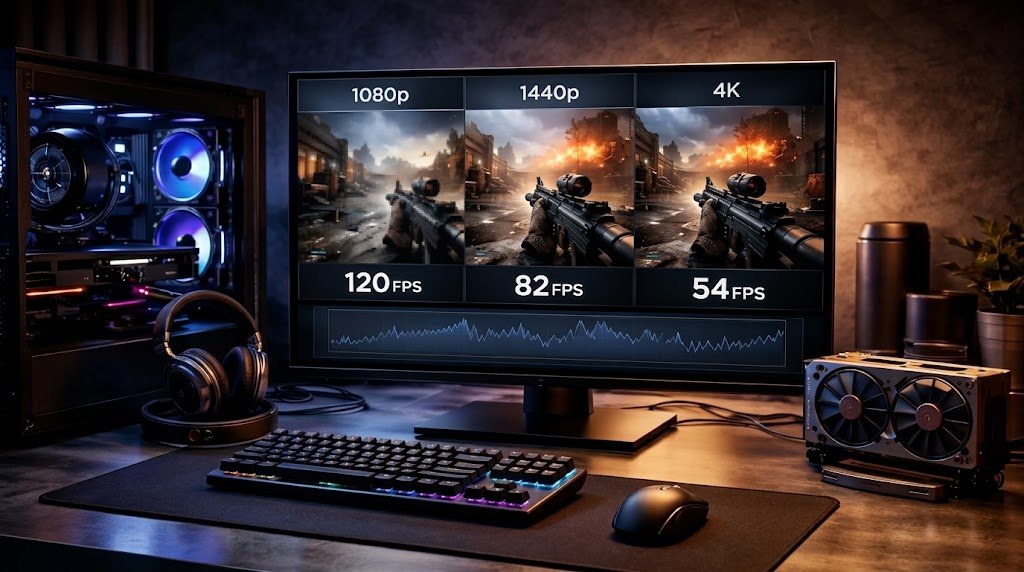
Full HD is still the most common choice. A 1080p gaming FPS calculator usually shows the biggest numbers since there are fewer pixels to draw. Even midrange cards can reach 60 FPS in plenty of games. It’s also a great fit for fast shooters on high refresh rate monitors. You get speed without paying a lot. For many people that’s the sweet spot.
1440p Gaming FPS Calculator Results
Quad HD sits right in the middle. A 1440p gaming FPS calculator will show lower numbers than 1080p. That’s because the screen has about 78 percent more pixels. So you’ll need a stronger graphics card to keep things smooth. The payoff is a much sharper picture. If your budget stretches that far many gamers say it’s worth it.
4K Gaming FPS Calculator Results
Ultra HD looks gorgeous but it asks a lot from your PC. A 4K gaming FPS calculator often shows big drops compared with 1080p. The screen holds four times as many pixels as Full HD. You’ll want a high end graphics card to stay smooth. Upscaling helps a lot here. Check the estimate first before you buy a 4K monitor. It could save you a headache.
How to Use an FPS Calculator Step by Step
Using an FPS calculator for gaming is pretty simple. Start by finding your CPU and GPU model in Windows settings. Open a tool you trust and type those parts in. Pick your game resolution and settings. Now read the average and minimum FPS. Compare them to your monitor’s refresh rate. Not happy with the numbers? Lower a few settings or think about an upgrade then test again.
Can a GPU Upgrade Increase FPS?
Yes in most cases it can. The graphics card has the biggest say in your frame rate. A GPU FPS calculator lets you line up two cards side by side. That graphics card FPS comparison shows how many extra frames you might get. Just don’t forget your processor. An old CPU can hold a shiny new GPU back. Run a PC upgrade performance estimate before you buy.
Best Online FPS Calculator for Gaming: What to Look For
Not every tool is worth your time. A good one is clear quick and kept up to date. It should cover recent GPUs and popular games. It should also show average and minimum FPS at each resolution. Check how often the data gets refreshed. Be wary of sites that ask for personal info or promise perfect results. Honest tools explain where their numbers come from.
Common Mistakes to Avoid
A few mistakes show up again and again. Some people pick the wrong GPU which throws off the whole estimate. Others forget to set the right resolution. Many trust one big number and ignore the minimum FPS. Background apps can also drag real results down. Doublecheck your inputs and run a quick in game test. Then compare it with what your gaming frame rate calculator predicted.
Related Keywords & Topics (LSI Section)
A few related terms are worth knowing. A PC gaming benchmark runs real hardware under load and gives you hard numbers. A gaming PC performance test also checks heat and stability. A gaming hardware compatibility checker makes sure your parts work together. Use all of these with an FPS prediction tool for the full picture. They’ll show your CPU and GPU performance clearly. You’ll also spot any CPU bottleneck in gaming or GPU bottleneck in gaming.
Conclusion
An FPS calculator for gaming saves you time money and a lot of stress. It shows what your PC can handle before you hit play. Just remember the results are estimates. Use them as a guide and back them up with real benchmarks. So go ahead and try one today. Tweak your settings and enjoy smoother games. Your next favorite title deserves a frame rate that feels great.
Frequently Asked Questions
How much FPS can my PC run?
That depends on your GPU CPU RAM the game and your resolution. Type those into an FPS calculator for gaming and you’ll get an estimated average. Most players aim for at least 60 FPS.
Is an FPS calculator accurate?
It’s a solid guide not a guarantee. The numbers come from benchmark data so real results shift with drivers cooling and background apps. Use the estimate to plan then check it with an in game test.
Can a GPU upgrade increase FPS?
Usually yes. A better graphics card tends to give the biggest jump. But a weak CPU can cap the gain so check both with a bottleneck calculator before you buy.
How does RAM affect gaming FPS?
Too little RAM causes stutter and slow loading. Sixteen gigabytes handles most modern games. More memory won’t fix a slow GPU so only upgrade it if you need to.
What is a good FPS for gaming?
For most games 60 FPS feels smooth. Competitive players often want 120 FPS or more on a high refresh rate monitor. Story driven single player games can feel great at 60.
Comments (0)
Be the first to comment.